
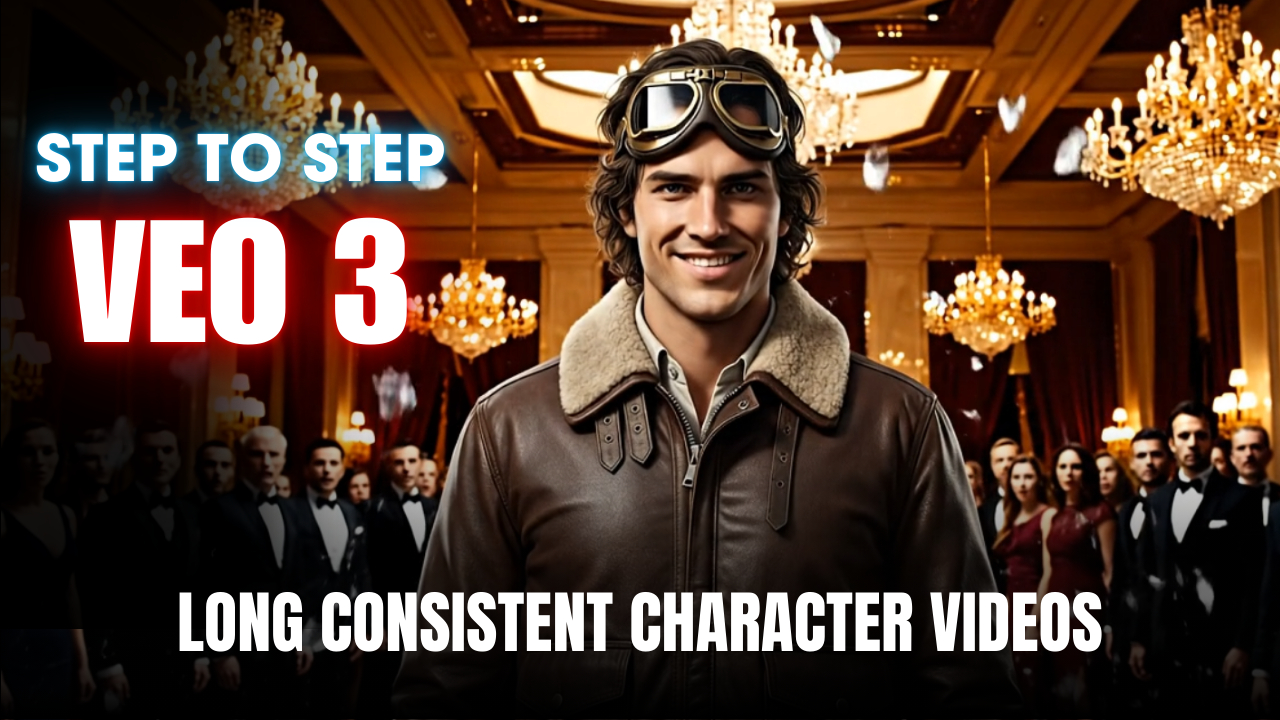
If you’ve ever tried creating long AI videos, you’ve probably faced the most common problem: the character keeps changing from scene to scene. The face, hair, or even clothes completely transform as soon as you generate a new clip. In this article, we’ll show you how to solve this problem and produce a Consistent Character with VEO 3 throughout your entire video — even if it’s longer than five minutes.

🔥 Why “Consistent Character with VEO 3” is So Important
Tools like VEO 3 are incredibly powerful for text-to-video generation, but they’re not designed to automatically keep your character consistent over multiple clips. Most users generate a video from one single prompt, and when they try to extend it, the character looks different. If you want to build a brand or a faceless YouTube channel, character consistency is essential for viewer retention and storytelling.
🧱 Step 1 – Build a Solid Character Description
Before using VEO 3, open ChatGPT and write:
“Describe a male character named Alex with detailed physical attributes and outfit, including skin tone, hair type, clothing colours and accessories.”
Then ask ChatGPT to split the result into Character (identity) and Action (what the character does).
👉 You will reuse the Character description in every single prompt to maintain a consistent character with VEO 3.
🖼 Step 2 – Generate the Character Image First
Go to VEO 3 → choose Frames to Video
Click Generate Image and paste only the Character description.
Use a plain white or green background.
Generate:
-
A full-body image
-
A mid-shot portrait
Save both — these are your base images for all later scenes.
🪄 Step 3 – Use the Two-Part Prompt Method
For each video scene, write a two-part prompt:
Character (the same description)
Action (new background + speech + movement)
Example for scene 1:
Action: “At the start of the first frame, change the white background to a glass rooftop at sunset. Alex crashes through the glass and says: ‘Guess the party just got interesting.’”
Paste the full prompt into VEO 3 (Frames to Video mode) and click Generate.
👉 Because the Character part never changes, VEO 3 always reuses the same appearance — that is how you get a consistent character with VEO 3.
🔁 Step 4 – Repeat for Multiple Scenes
Generate new scenes by reusing the exact same Character section and updating only the Action section:
-
Scene 2: Alex at a dim café saying “Strange how everything shifts around me…”
-
Scene 3: Alex walking down a neon-lit alley, drinking coffee
-
Scene 4: Alex sitting by a fireplace, speaking to the viewer
Each will look visually different, but the character remains 100% consistent.
🎬 Step 5 – Trim and Merge in CapCut
Download all clips and import them into CapCut (or another editor).
Trim the first frame (plain background) and add transitions between clips.
Once everything is aligned, export the entire sequence.
You now have a polished AI video featuring a consistent character with VEO 3 across multiple scenes.
✅ Final Thoughts
The key to achieving consistent character with VEO 3 is prompt structure.
Use the same Character description in every prompt, and only change the Action.
With this method, you can easily build long, cinematic AI videos with the same character — perfect for storytelling, tutorials, faceless YouTube channels or animated shorts.
👉 Try it and let me know:
Which character will you create first with VEO 3?
- 👍 Like the video: Stop Struggling! VEO 3 + AI Image & Text to Video Makes Long Consistent Character Videos Easily 🤯
- 🔔 Subscribe to Nhat Anh AI
- 💬 Comment what topic you want next
- 📤 Share with friends ready to grow their YouTube journey
- 🌐 Visit my website for more AI tools & tutorials: https://nhatanhai.com/
