
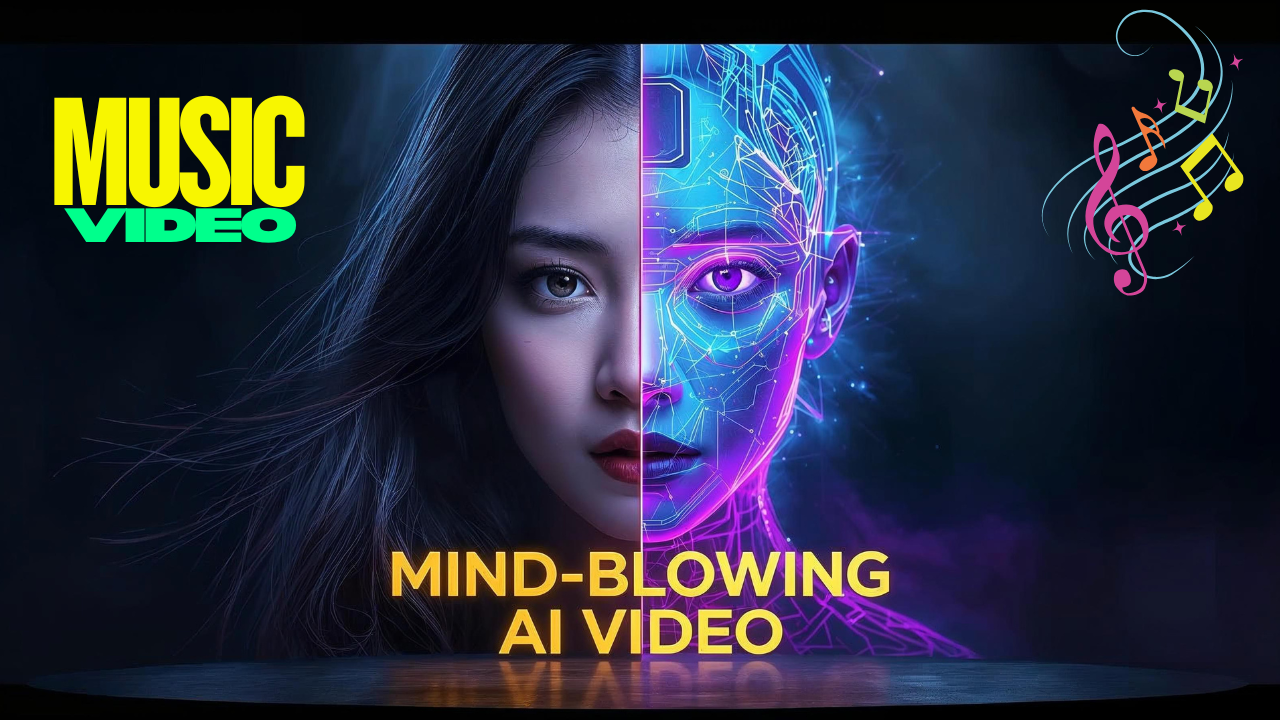
The way we create music and visuals is changing forever. With today’s advanced tools, you no longer need a recording studio, expensive equipment, or years of editing skills. Now, anyone can produce a professional AI music video with Openart AI in just a few clicks.
In this guide, I’ll show you exactly how to combine two powerful platforms—Music GPT for songs and Openart AI for visuals—to create a complete music video that’s ready to share on YouTube, TikTok, or any platform.

Step 1: Generate Your Song with Music GPT
Before you can make an AI music video with Openart AI, you need a track. Music GPT is a breakthrough tool that works like a songwriter, sound engineer, and producer rolled into one.
-
Sign up with your Google account or email—it takes less than a minute.
-
Use the text box to describe your song idea. For example: “Create an upbeat Pop-Rock track with electric guitars and powerful drums.”
-
Music GPT instantly generates two professional-quality versions. You can listen, refine your prompts, or even request lyrics.
The result? High-quality, original tracks in genres from K-pop to Lo-fi hip hop, ready for your video project.
Step 2: Upload Your Track to Openart AI
Now comes the fun part: turning your song into an AI music video with Openart AI.
-
Head to Openart’s website and log in.
-
Click on “Music Video” and upload your track (MP3, WAV, or M4A supported).
-
The AI will analyze the beats, rhythm, and mood of your song, preparing to sync visuals with the music.
Step 3: Choose Your Video Mode
Openart AI gives you three creative paths:
-
Style Mode – abstract, artistic visuals synced to your music.
-
Sing Mode – animated characters lip-syncing to your song.
-
Story Mode – a narrative video with characters, scenes, and transitions.
For most creators, Story Mode is the most engaging option. You can let the AI auto-generate a full video or customize characters and scenes yourself.
Step 4: Customize Your AI Music Video
Before you hit generate, you can fine-tune settings:
-
Image model: Flux Context for the sharpest results.
-
Resolution: 720p for social posts, 1080p or higher for professional use.
-
Character selection: Use pre-made avatars or upload your own.
Once ready, click “Create Story” and let Openart AI work its magic. Within minutes, you’ll have a complete video synced perfectly to your track.
Step 5: Edit and Finalize
The generated AI music video with Openart AI can be further refined. You can:
-
Regenerate specific scenes.
-
Adjust timing to match dramatic moments in the song.
-
Modify lighting, style, or background elements.
Finally, download your video and add finishing touches in an editor like CapCut or Premiere Pro if needed.
Why Use Openart AI for Music Videos?
Creating an AI music video with Openart AI has several benefits:
-
No production costs – no studio, no actors, no film crew.
-
Creative freedom – design unique characters, settings, and moods.
-
Speed – complete a video in minutes instead of weeks.
-
Monetization potential – publish on YouTube, TikTok, or monetize through ads and music platforms.
Final Thoughts
Making an AI music video with Openart AI is no longer science fiction—it’s a reality that any creator can use today. With Music GPT for songs and Openart AI for visuals, you can bring your artistic vision to life without technical barriers.
So, are you ready to create your first AI-powered hit? Try it out today, and you’ll see just how easy and exciting music video production has become in the age of AI.
- 👍 Like the video: MIND-BLOWING AI Music Video Secrets Revealed with Openart AI | Nhat Anh AI
- 🔔 Subscribe to Nhat Anh AI
- 💬 Comment what topic you want next
- 📤 Share with friends ready to grow their YouTube journey
- 🌐 Visit my website for more AI tools & tutorials: https://nhatanhai.com/
